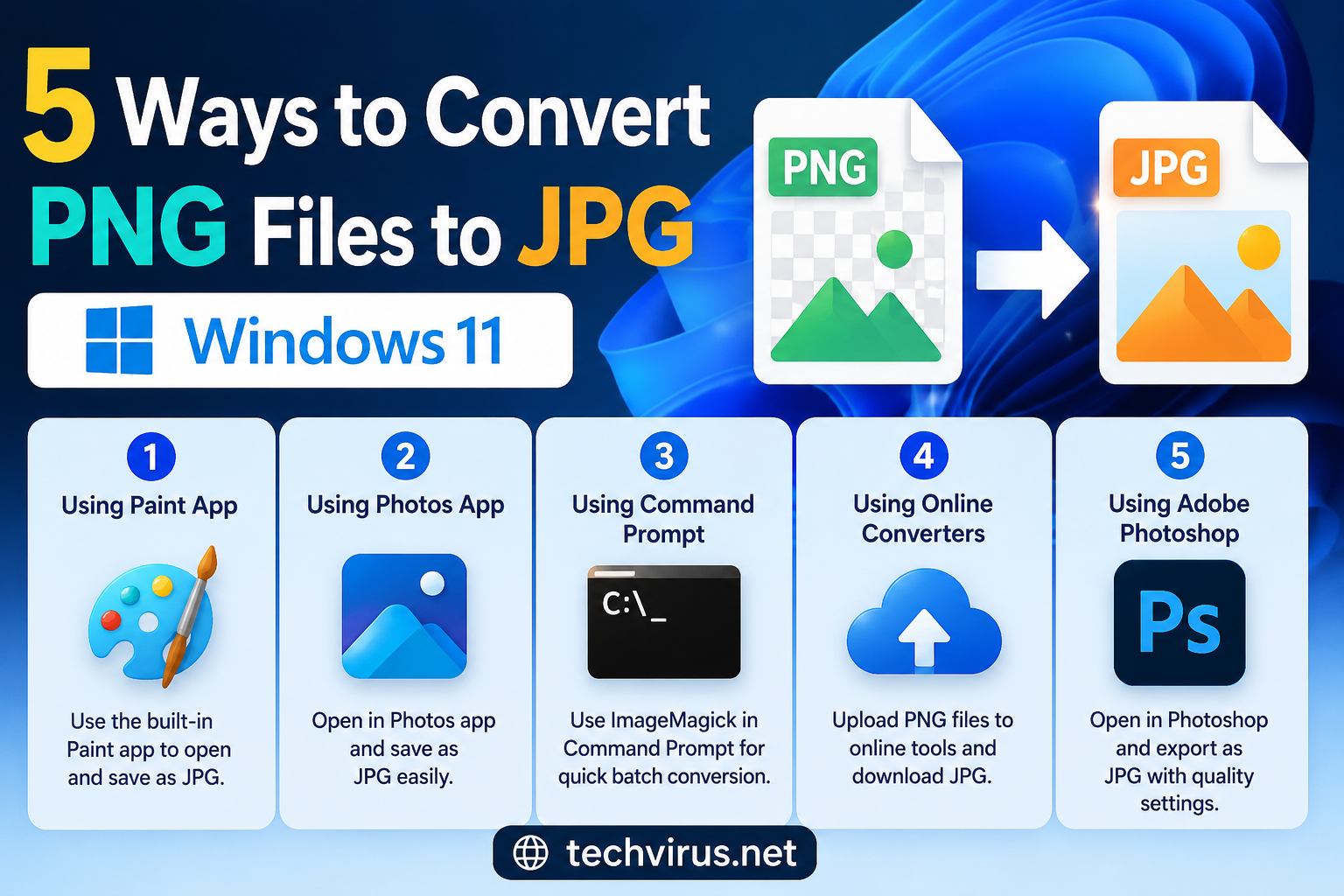
5 Ways to Convert PNG Files to JPG on Windows 11

Hello Dear readers welcome to Techvirus today we are going to discuss about 5 Ways to Convert PNG Files to JPG on Windows 11 Convert PNG to JPG on Windows 11 in minutes using Paint, Photos, online converters, ImageMagick, or Photoshop — quick, simple, and beginner-friendly methods for every user.

Compared to JPG or JPEG, the PNG file format is larger, and you may want to convert it before uploading it to the cloud storage. Here are the five different ways to convert PNG files to JPG in Windows 11.  if u also want to know the expansion be with us till the end of the article.

5 Ways to Convert PNG Files to JPG on Windows 11

I have a large number of PNG images that are taking up too much space on my Windows 11 PC, and I need to convert them to JPG to reduce the file sizes. I’d prefer to do this in bulk rather than one by one since there are quite a few images. I’ve looked at a few methods but haven’t found one that’s both efficient and easy to use on Windows 11.

So guys here we are going to discuss about the latest ways to convert PNG files to JPG on Window 11 so if you also facing so many issue regarding on that matter so don’t worry we are here for the perfect solution read the article carefully to apply these steps without facing any consequences.

1. Using the Built-in Paint App (Easiest)
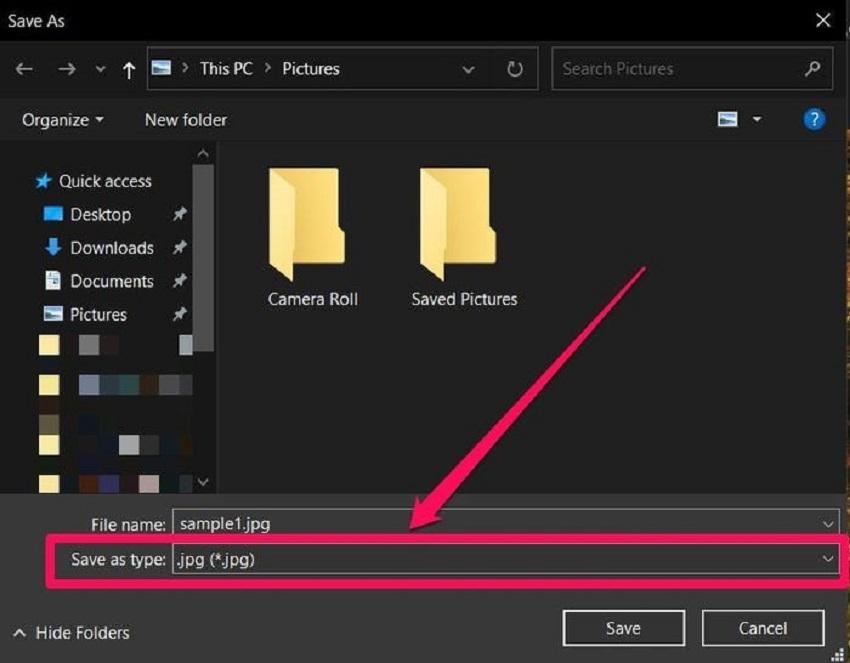
5 Ways to Convert PNG Files to JPG on Windows 11

Step 1 : Right-click your PNG image.

Step 2 : Open with → Microsoft Paint
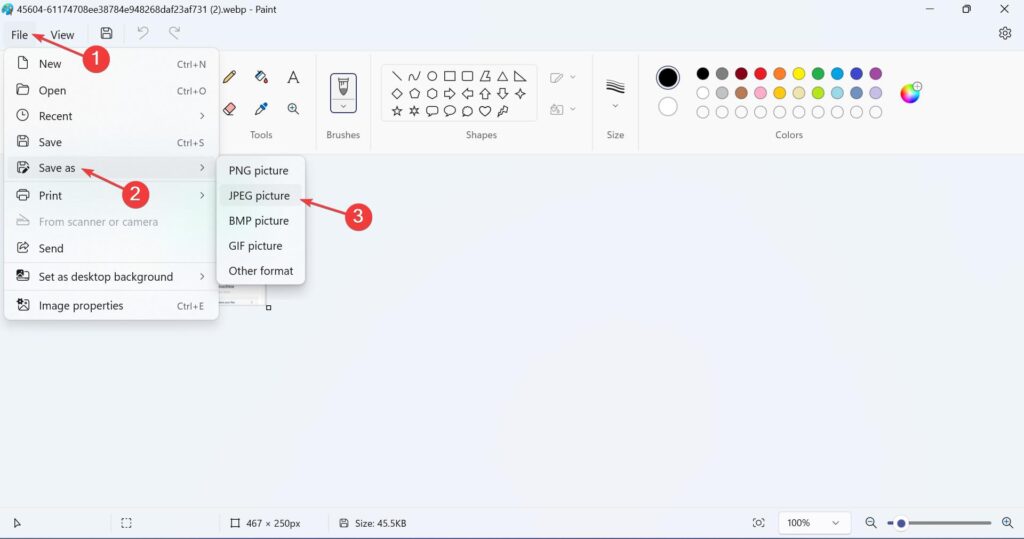
5 Ways to Convert PNG Files to JPG on Windows 11

Step 3 : Click File → Save As

Step 4 : Choose JPEG Picture
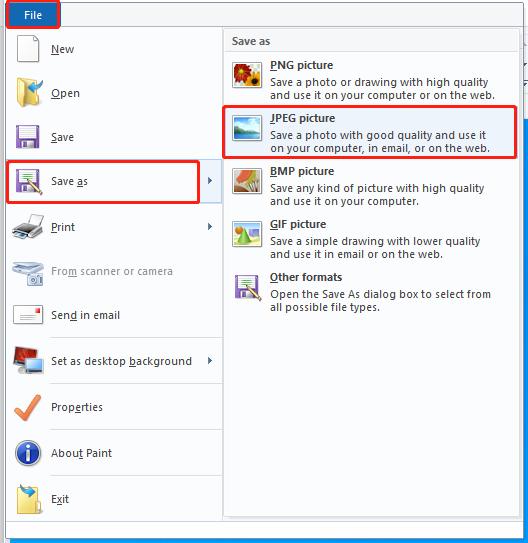
5 Ways to Convert PNG Files to JPG on Windows 11

Step 5 : Save the file.

Best For:

  • Quick single-image conversion
  • No extra software needed

2. Using Photos App
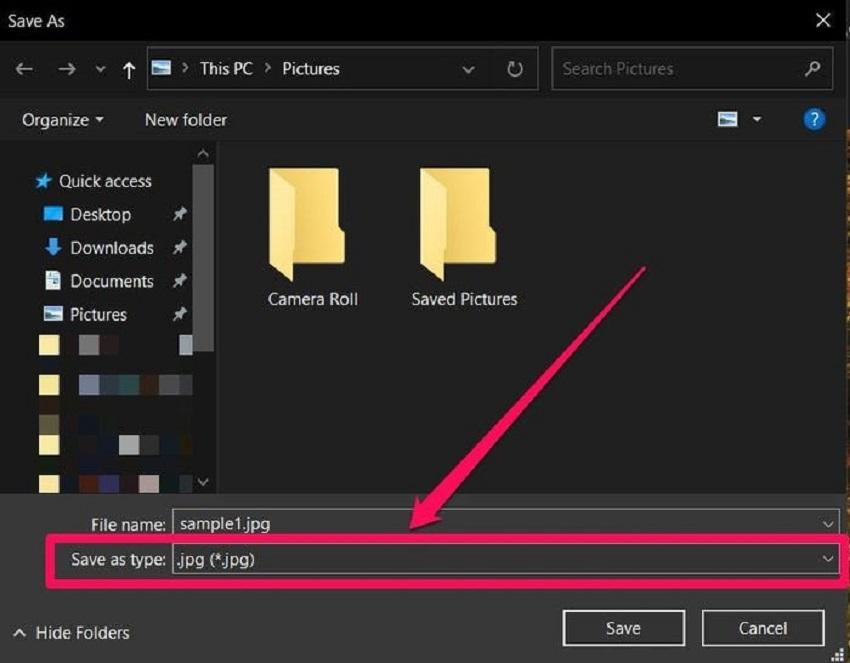
5 Ways to Convert PNG Files to JPG on Windows 11

Step 1 : Open PNG in Microsoft Photos

Step 2 : Click the 3-dot menu

Step 3 : Select Save as
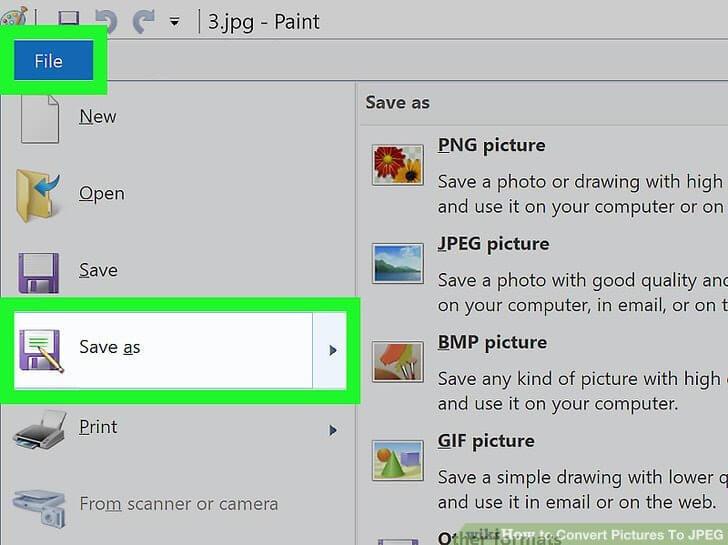
5 Ways to Convert PNG Files to JPG on Windows 11

Step 4 : Choose JPG/JPEG

Best For:

  • Casual users
  • Basic editing before converting

3. Using Command Prompt (Batch Conversion)
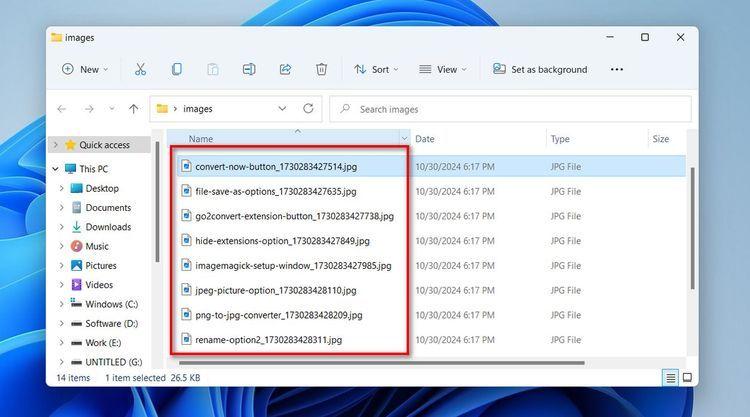
5 Ways to Convert PNG Files to JPG on Windows 11

Step 1 : Install ImageMagick first.

Step 2 : Command: magick image.png image.jpg
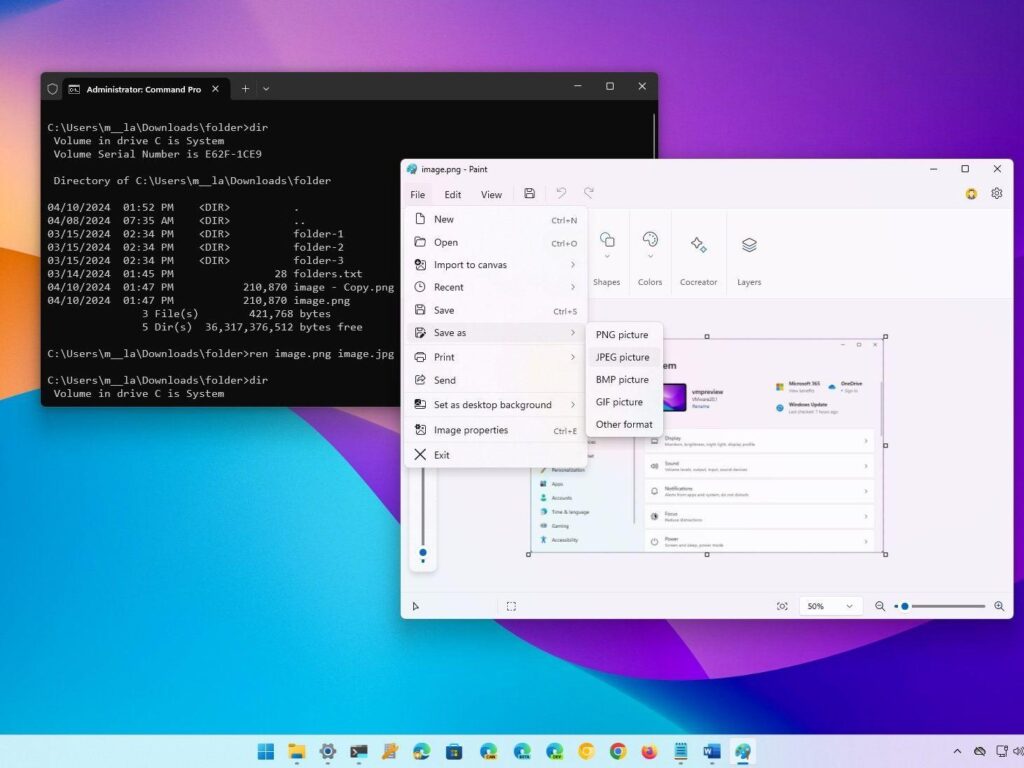
5 Ways to Convert PNG Files to JPG on Windows 11

Step 3 : Batch Convert: magick mogrify -format jpg *.png

Best For:

  • Multiple files
  • Advanced users

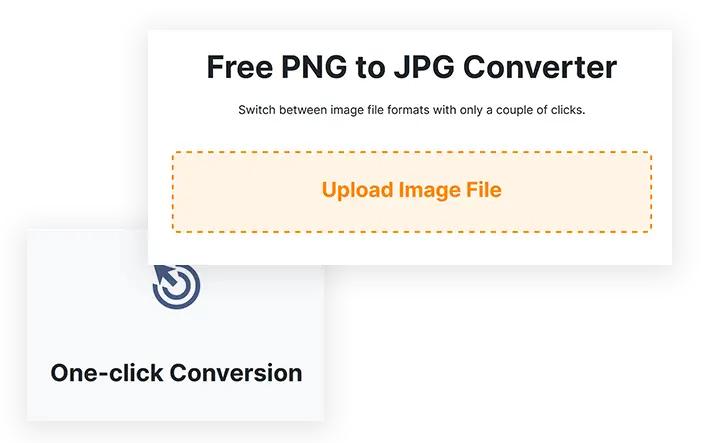
4. Using Online Converters
5 Ways to Convert PNG Files to JPG on Windows 11

Popular tools:

Best For:

  • Fast conversion without installing software
  • Mobile + PC use

Avoid if:

  • Your images contain sensitive/private information

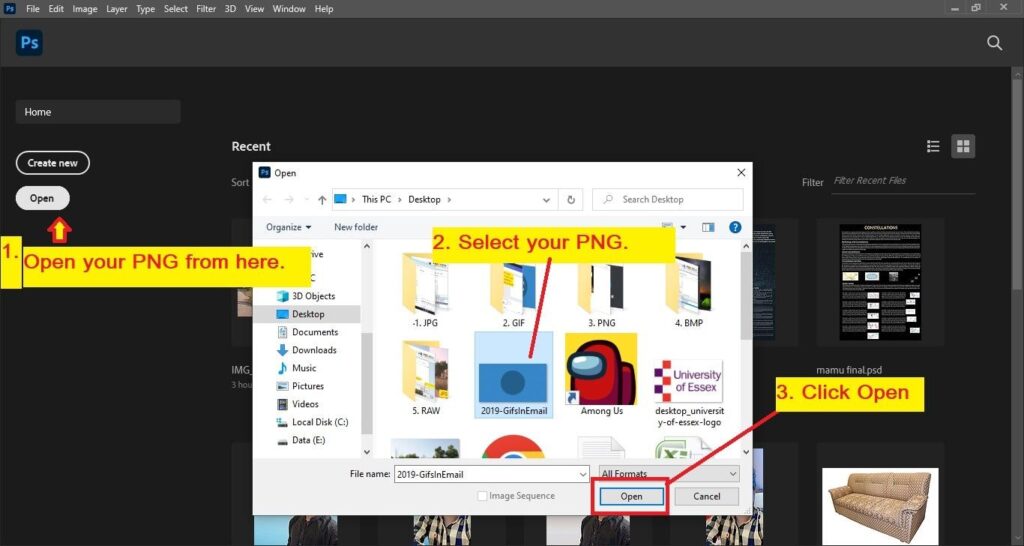
5. Using Adobe Photoshop
5 Ways to Convert PNG Files to JPG on Windows 11

Using Adobe Photoshop:

Step 1 : Open PNG file

Step 2 : Click File → Save As

Step 3 : Select JPEG

Step 4 : Adjust quality settings

Step 5 : Save

Best For:

  • Professional image editing
  • High-quality exports

Which Method Should You Use?

Situation Best Method
One quick image Paint
Simple editing Photos App
Many files ImageMagick
No software install Online tools
Professional work Photoshop
5 Ways to Convert PNG Files to JPG on Windows 11 – FAQs

Why should I convert PNG files to JPG?

PNG files usually have higher quality and support transparency, but JPG files are smaller in size and better for sharing, websites, and storage saving.

Does converting PNG to JPG reduce image quality?

Yes, JPG uses compression, so some image quality may be reduced compared to PNG, especially after multiple edits.

Will the transparent background remain after conversion?

No. JPG format does not support transparency, so transparent areas usually turn white or another solid color.

Can I convert PNG to JPG without installing software?

Yes, you can use built-in Windows apps like Paint or Photos, or online tools such as CloudConvert and iLoveIMG.

Which method is best for converting multiple PNG files at once?

Using ImageMagick or batch conversion software is the fastest option for converting multiple files together.

Read more : How To Find the Fastest DNS Server for Your Android Phone (2025 Guide)

Conclusion :

In this article, we have shared complete information with you related to [5 Ways to Convert PNG Files to JPG on Windows 11].The purpose of this website run by the Enterprises is not only to provide benefits but also to improve the standard of living of the Peoples.

At TechVirus, we aim to bring you the latest and most reliable updates from the world of technology. Stay connected with TechVirus for daily tech news, unbiased reviews, and real-world insights that matter.

Visit regularly to get the latest updates, eligibility criteria, applying to method , and accurate information about other technology schemes – Techvirus.net

Leave a Comment