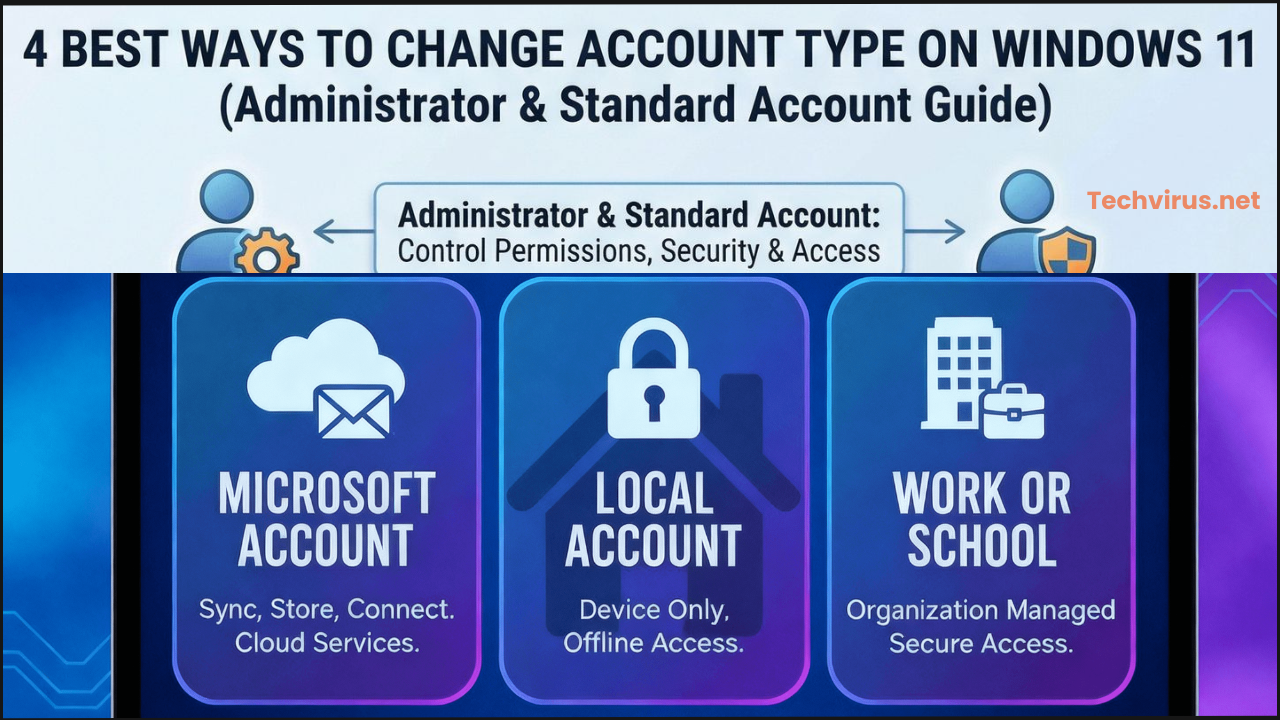
Hello Dear readers welcome to Techvirus today we are going to discuss about 4 Best Ways to Change Account Type on Windows 11 (Administrator & Standard Account Guide). Now Friends we are going to discuss Change Account Type on Windows 11 if you are facing problem to do that so today we are here for solution and i am going to suggest you 4 best ways.
We all know that Windows 11 is a top major operating system and it comes with best durablity and enhancement features so this article must be very important for you so be with us till the end of the article. Whether you prefer Settings, Control Panel, CMD, or PowerShell, each method lets you switch between Administrator and Standard User with ease.
Read more : Samsung Galaxy Z TriFold: US Release Date, Price & Full Specifications (2025)
4 Best Ways to Change Account Type on Windows 11 (Administrator & Standard Account Guide)
Changing account type in Windows 11 is essential when you want to give more control to a user (Administrator) or limit access (Standard User). Windows 11 offers multiple ways to manage account roles, and in this guide, we’ll show you the four easiest and most effective methods.
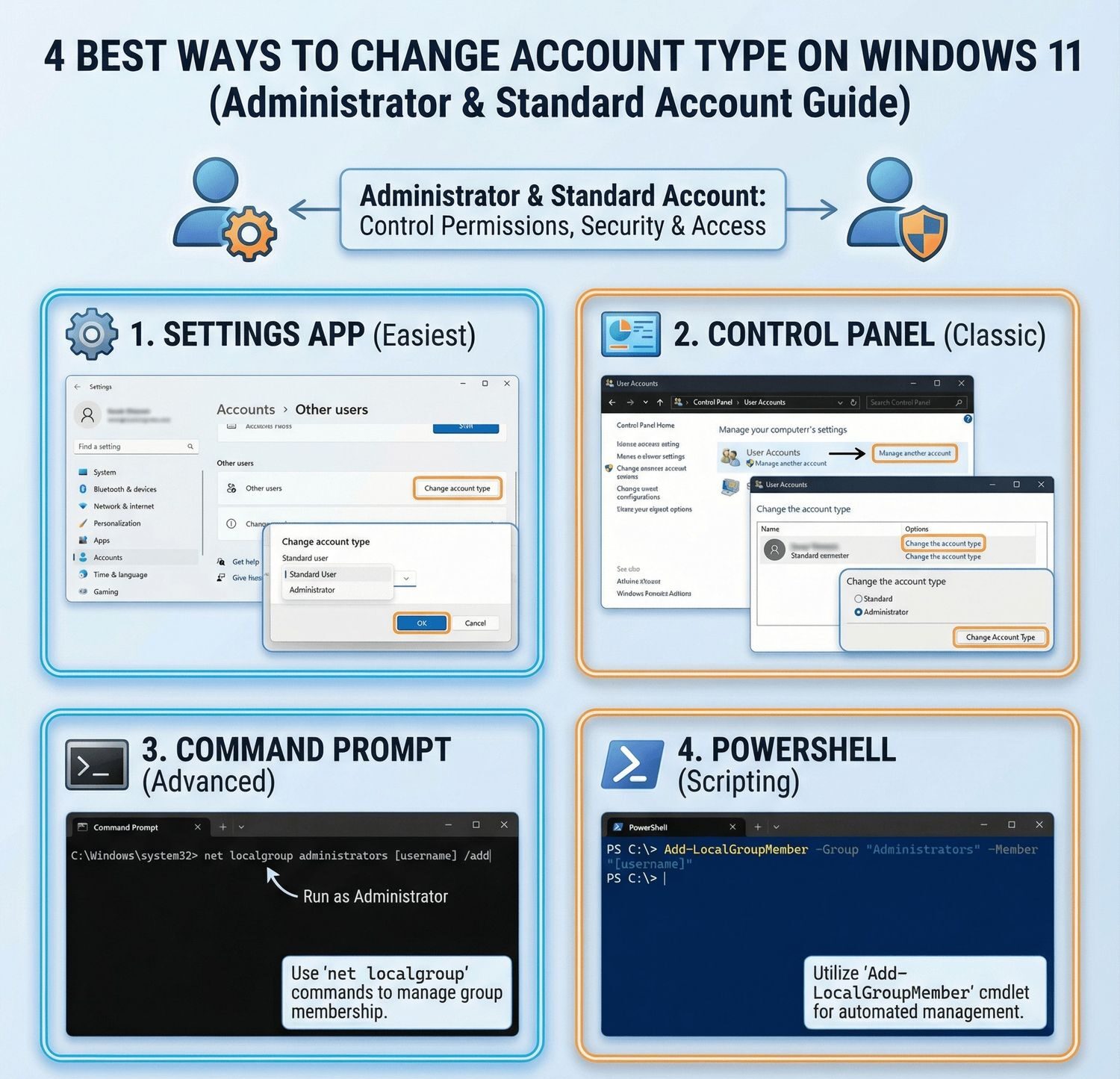
Managing user accounts effectively is crucial for maintaining security and proper access control on Windows 11. Whether you need to grant administrative privileges to a user or restrict access by converting an administrator to a standard user, knowing how to change account types is essential for system administrators and power users alike.
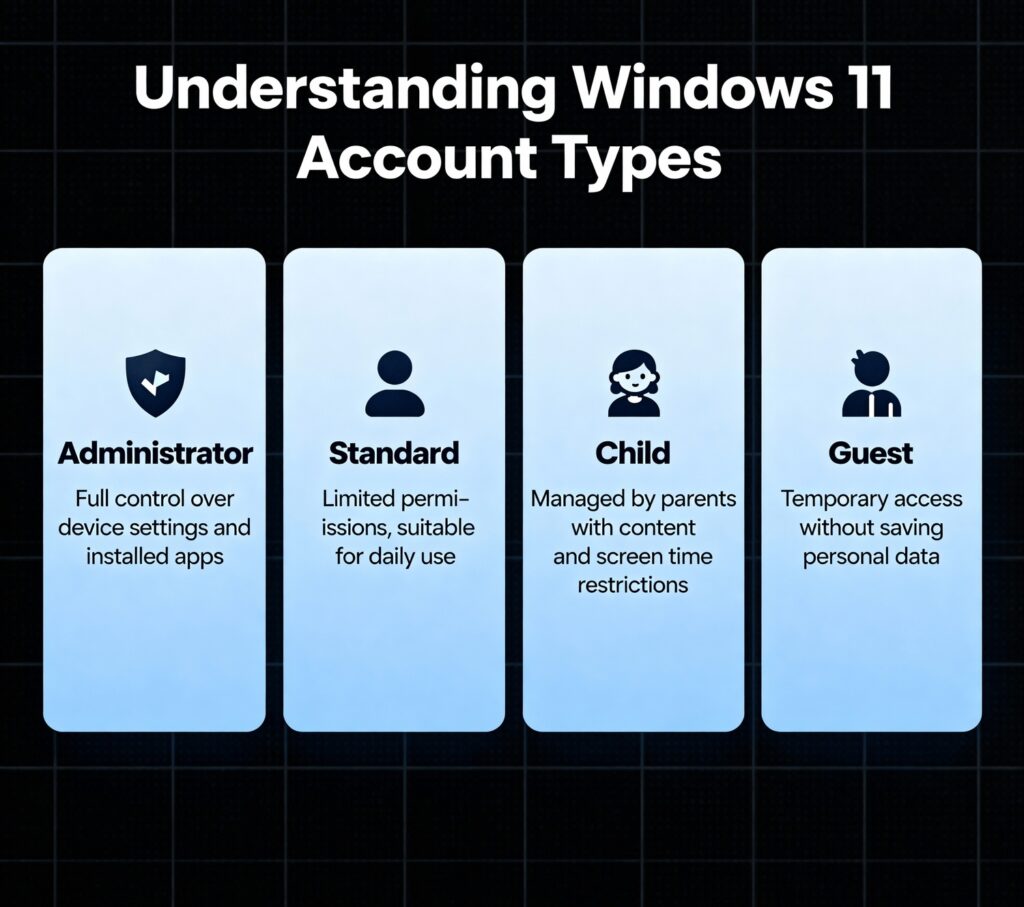
Understanding Windows 11 Account Types
Now Friends first thing we have to understand the Windows 11 Account Types at that there is two types of account and i already describe the types and features both at the following below so read it carefully and if you found doubt just let us know in comments.
Administrator Account
So guys first one is Administrator account in this feature you can get access all files and folders and full system access control as well It allows you to modify system settings, install apps, manage security, and make changes that affect all users.
- Full system access and control
- Can install/uninstall software
- Modify system settings and security policies
- Create and manage other user accounts
- Access all files and folders
Standard User Account
On the other hand there is Standard User account in this feature you can run most applications and Administrator has full control of the system, the Standard User Account is designed for everyday use with restricted permissions, enhancing system safety and stability.
- Limited system access
- Can run most Applications
- Cannot install software or make system changes
- Cannot access other users’ files
- Requires administrator approval for certain actions
Read more : Apple Siri 2.0: Next-Gen AI Features, Upgrades, and Expected Release Date
Method 1: Using Settings App
Now Friends i am going to share you step by step instruction for using settings app so read all the points carefully to apply this thing in your operating system.
- First thing you have to open Settings
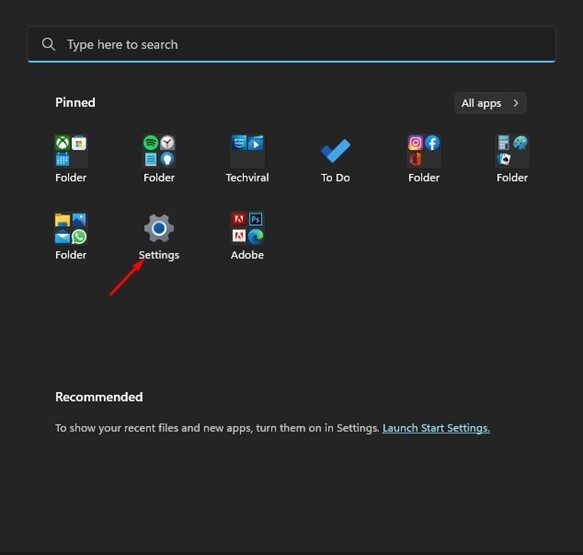
- Secondly you have to Press Windows + I keys simultaneously
- Thirdly Or click the Start button and select Settings.
- Now you have to Navigate to Accounts and Click on “Accounts” from the left sidebar.
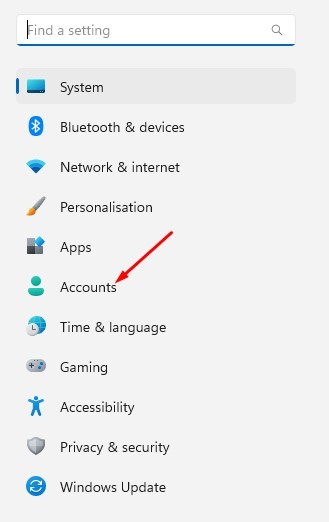
- Now Click to Select Family and other users.
- At this point Locate the account you want to modify
- Another thing you have to done is Click on the account name and Select “Change account type”.
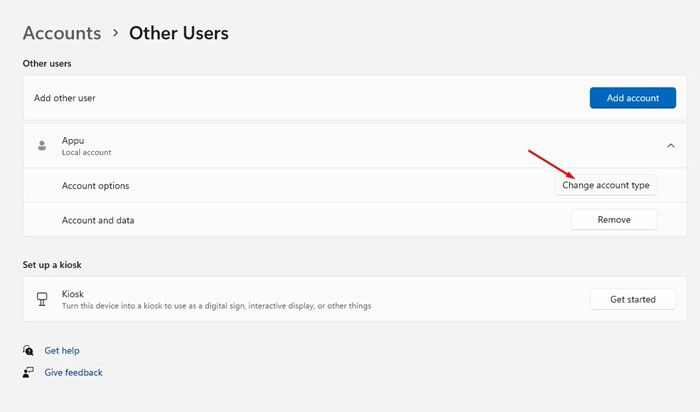
- Now Choose between “Administrator” or “Standard User”.
- At the end you have to Click on OK to confirm changes.
Benefits of This Method
- After applying this changes you can get Most user-friendly approach .
- On the other hand you can also get Visual interface with clear options.
- There is also one of the best feature that is No command-line knowledge required.
- The best benefit you can also Integrated with Windows 11’s modern UI
Method 2: Using Control Panel (Classic Method)
Now friends at the second i am going to describe the complete information of Using Control Panel so read all the points carefully to understand this method.
Detailed Process
- First thing you have to Press Windows + R to open Run dialog.
- Now Type netplwiz and press Enter.
- On the other hand Or navigate through Control Panel → User Accounts.
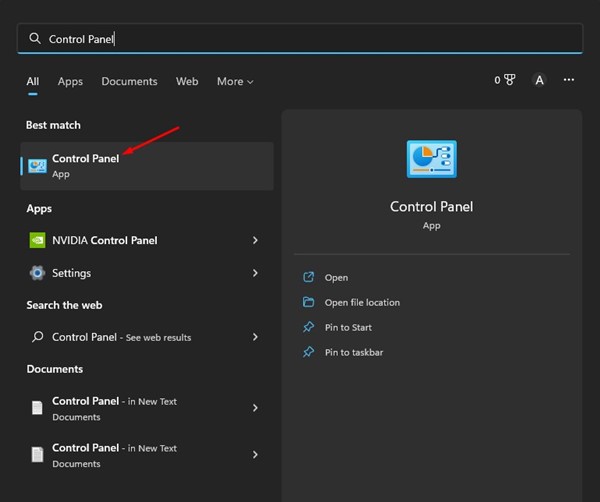
- At third step Choose the account you want to modify.
- Now Click “Properties” button.
- After that Change Group Membership and Navigate to “Group Membership” tab.
- At the end Select either Administrator: For full system access or Standard User: For limited access.
- Now Click Apply then ok .
When to Use This Method
- Working with domain-joined computers
- Need access to advanced user properties
- Prefer traditional Windows interface
- Managing multiple accounts simultaneously
Read more : Google Brings Gemini AI To Android Auto
Method 3: Using Command Prompt
Now Friends we are the third method and i am going to share you the using command prompt step by step and in this section there is also advantages function available.
PowerShell Commands
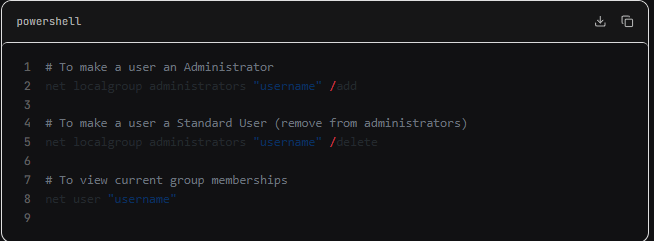
Advanced PowerShell Method
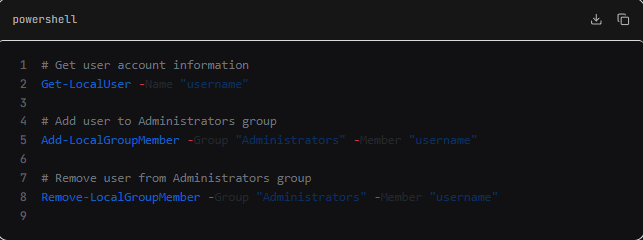
Advantages
- Quick execution for Tech-savvy users
- Scriptable for batch operations
- Works remotely via command line
- Precise control over group memberships
Method 4: Using Computer Management Console
Now at the last point i am going to share you Using Computer Management Console step by step so guys what are you waiting for just read the process and applied onto it .
Complete Walkthrough
- First thing you have to Right-click “This PC” and select “Manage”
- Now Or type compmgmt.msc in Run dialog.
- After that Expand “Local Users and Groups” and Click on “Users” folder.
- Now you have to Right-click the target user account.
- Then you have to Select “Properties” or Go to “Member Of” tab.
- After that Click “Add” to join Administrator group.
- Than Click “Remove” to leave Administrator group.
- At the end Apply changes and close.
Professional Benefits
- Enterprise-grade management tool
- Detailed user account information
- Batch user management capabilities
- Integration with Active Directory
Read more : How to Create AI Voiceovers for Free (2025 Guide) | Best Free AI Voice Generator Tools
Important Considerations and Best Practices
Friends now i am going to share the table that is listed below regarding the Important Considerations and Best Practices so that you clearly understand and its get easy to use.
| Practice | Recommendation | Reason |
|---|---|---|
| Minimal Admin Accounts | Keep only necessary admin accounts | Reduces security risks |
| Regular Audits | Review account types monthly | Maintains proper access control |
| Strong Passwords | Enforce complex passwords | Prevents unauthorized access |
| Account Naming | Use descriptive account names | Improves management clarity |
Common Scenarios
New Employee Setup
- Start with Standard User account
- Upgrade to Administrator only if job requires it
Departing Employee
- Immediately revoke administrator privileges
- Consider disabling account entirely
Temporary Access
- Grant temporary admin rights
- Set reminder to revoke after task completion
Read more : AI Smartphones 2025 – Best Upcoming AI Phones, Features, Launch Timeline
4 Best Ways to Change Account Type on Windows 11 – FAQs
What are the different account types in Windows 11?
Windows 11 offers two main account types: Administrator and Standard User. Admin accounts have full control, while Standard accounts have limited permissions.
How do I check my current account type in Windows 11?
Go to Settings → Accounts → Your Info. You will see whether your account is Administrator or Standard.
Can I change a Standard account to Administrator?
Yes, but only if you are logged in with an Administrator account.
Is it safe to give someone Administrator access?
Admin access gives full control over system settings and files. Only give it to trusted users.
Will changing account type delete files?
No. Switching between Standard and Administrator does NOT delete files or apps.
Why can’t I change the account type?
You may be logged in as a Standard user, or your organization may have restrictions.
Read more : Top 10 Best Budget Smartphones Under $300 in 2025 – Performance Meets Affordability
Conclusion :
In this article, we have shared complete information with you related to [4 Best Ways to Change Account Type on Windows 11 (Administrator & Standard Account Guide)].The purpose of this website run by the Enterprises is not only to provide benefits but also to improve the standard of living of the Peoples.
At TechVirus, we aim to bring you the latest and most reliable updates from the world of technology. Stay connected with TechVirus for daily tech news, unbiased reviews, and real-world insights that matter.
Visit regularly to get the latest updates, eligibility criteria, application process, and accurate information about other government schemes – Techvirus.net