Hello Dear readers welcome to Techvirus today we are going to discuss about 4 Best Ways to Change Your Computer Name in Windows (2025 Guide). Today we are here for discuss to change your computer name in windows All methods require administrator privileges and a restart for the change to take full effect so be with us till the end of the article.
Friends Changing your computer name in Windows is important foe easier device identification and Whether you’re on Windows 10 or Windows 11, the process is straightforward and can be done in several ways, from the Settings app to advanced command-line tools.
Read more : 4 Best Ways to Change Account Type on Windows 11 (Administrator & Standard Account Guide)
4 Best Ways to Change Your Computer Name in Windows (2025 Guide)
Changing your computer name in Windows is important for easier device identification, especially if you use multiple PCs, share the network, or connect to a work/school domain. Windows 10 and Windows 11 allow you to rename your PC in multiple ways—using Settings, Control Panel, Command Prompt, and PowerShell.

Renaming your computer in Windows helps with device identification, network organization, and remote access and in this article i am going to share you all the methods step by step so that you easily applied this process and perform to change your computer name in windows 11.
Read more : Apple Siri 2.0: Next-Gen AI Features, Upgrades, and Expected Release Date
Method 1: Change Computer Name Using Windows Settings (Easiest Method)
So friends this is the first and the simplest way and works on both Windows 10 and Windows 11 so you can read all the steps that must be below :
- First thing you have to Open Settings
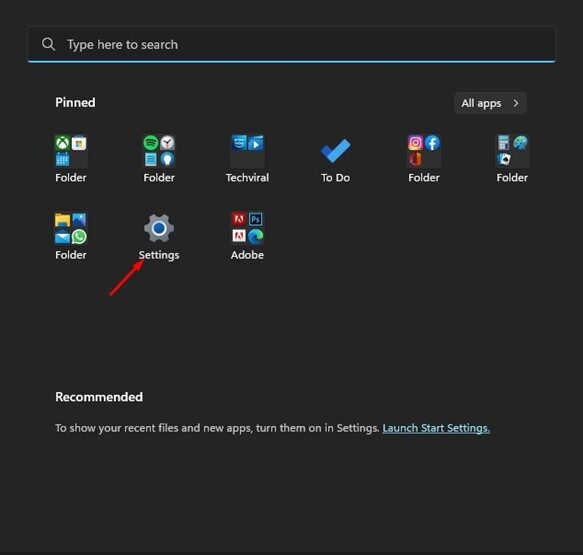
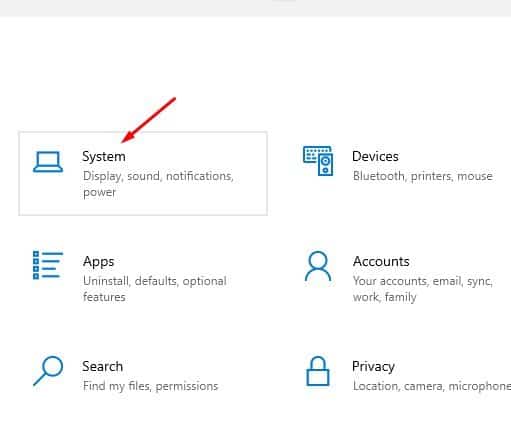
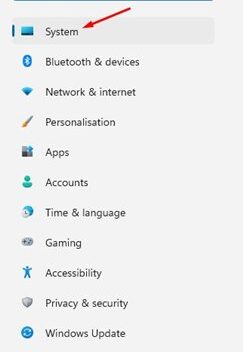
- Secondly you have to Click System
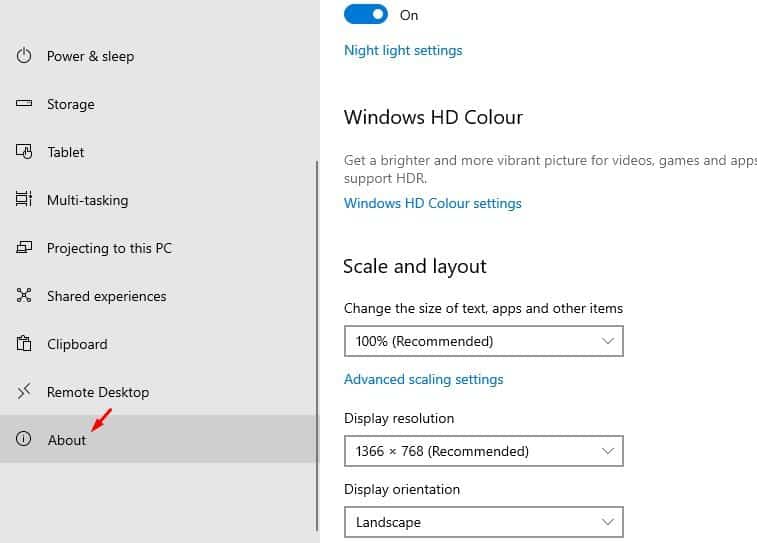
- After that Go to About
- Than Click Rename this PC
- After that you have to Enter your new computer name

- Than Click Next
- After completing all the steps you have to Restart your PC to apply changes
Why Use This Method?
- No technical knowledge needed
- Clean and fast
- Recommended for most users
Method 2: Change Computer Name from Control Panel (Classic Method)
On the other hand i am going to share you second method whether you can also apply to change your pc name that is classic method If you prefer old Windows tools, this is a reliable option.
- Let’s start first you have to Open Control Panel
- Than you have to Click System and Security
- After that you have to Select System
- Now Click Change settings under Computer name, domain, and workgroup settings
- Now you have to Click Change
- After doing all the steps than Type your new PC name
- At the end Click OK then restart your PC
Why Use This Method?
- Works on older Windows versions
- Useful for domain and workgroup settings
Read more : Google Brings Gemini AI To Android Auto
Method 3: Change Computer Name Using Command Prompt (CMD)
First this is the last second one method this is you can follow and For advanced users or IT technicians, CMD offers fast renaming.
Commands:
- First of all you have to Open Command Prompt (Run as Administrator)
- After that Type this command
wmic computersystem where name="%computername%" call rename name="New-PC-Name"
- After typing the command than you have to Restart your PC
Why Use This Method?
- Fast, especially for advanced users
- Can be used for automation
- Useful for batch scripting
Method 4: Change Computer Name Using PowerShell (Recommended for IT)
Now Friends this is the last method i am going to share you will all the steps that PowerShell is powerful and preferred for system admins.
- First of all you have to Open PowerShell (Run as Administrator)
- After this you have to Type the command:
- After doing all the steps you have to Restart your PC using
Why Use This Method?
- Great for automation
- Works for multiple computers
- Most reliable scripting option
Tips for Choosing a Good Computer Name
-
Avoid spaces (use hyphens or underscores)
-
Keep it short and simple
-
Use unique identifiers, like:
-
OfficeSystem01
To conclude, the best computer name is one that is memorable, unique, and simple. Choose a name that instantly tells you where the device is, or who uses it, making management and networking effortless.
Read more : How to Create AI Voiceovers for Free (2025 Guide) | Best Free AI Voice Generator Tools
4 Best Ways to Change Your Computer Name in Windows – FAQs
Why should I change my computer name in Windows?
A computer name helps identify your device on a network. Changing it is useful for personalization, easier device management, and avoiding confusion when multiple PCs have similar default names.
Will changing my computer name affect my files or data?
No. Changing your PC name does not delete or modify any files, settings, apps, or user data. Only the system identifier changes.
Do I need admin rights to change my computer name?
Yes. You must be logged in with an Administrator account to change the computer name in Windows.
Do I need to restart my PC after renaming it?
Yes. Windows requires a system restart to apply the new computer name.
Can I change my computer name in Windows 10 using the same methods?
Yes. The methods are almost identical for Windows 10 and Windows 11, including Settings, Control Panel, PowerShell, and Command Prompt.
Read more : Top 10 Best Budget Smartphones Under $300 in 2025 – Performance Meets Affordability
Conclusion :
In this article, we have shared complete information with you related to [4 Best Ways to Change Your Computer Name in Windows (2025 Guide)].The purpose of this website run by the Enterprises is not only to provide benefits but also to improve the standard of living of the Peoples.
At TechVirus, we aim to bring you the latest and most reliable updates from the world of technology. Stay connected with TechVirus for daily tech news, unbiased reviews, and real-world insights that matter.
Visit regularly to get the latest updates, eligibility criteria, application process, and accurate information about other government schemes – Techvirus.net