Hello Dear readers welcome to Techvirus today we are going to discuss about How to Launch Multiple Apps at Once on Windows (Easy Methods). Multiple Apps at once on windows make it very easy to work and most reliably it is time consuming do more with same time so if you also want to know this method be with us till the end of the article.
Below are several easy practical ways to open multiple apps at once on Windows. Choose the method that best fits your workflow and comfort level. we are going to suggest you three best methods to launch multiple apps at once on windows so what are you waiting for read all the methods carefully to use this features and get more enhancement in your work.
Read more : Samsung Smart TV Owners Get Hundreds Of Channels For Free – Here’s How
How to Launch Multiple Apps at Once on Windows (Easy Methods)
Launching multiple apps one by one every time you start your PC can be time-consuming and frustrating. Whether you are a student, professional, developer, or content creator, opening the same set of applications daily slows down productivity.
Learning how to launch multiple apps at once on Windows is a game-changer for productivity. Whether you prefer a simple startup folder or advanced batch files, Windows gives you flexible options for every skill level.
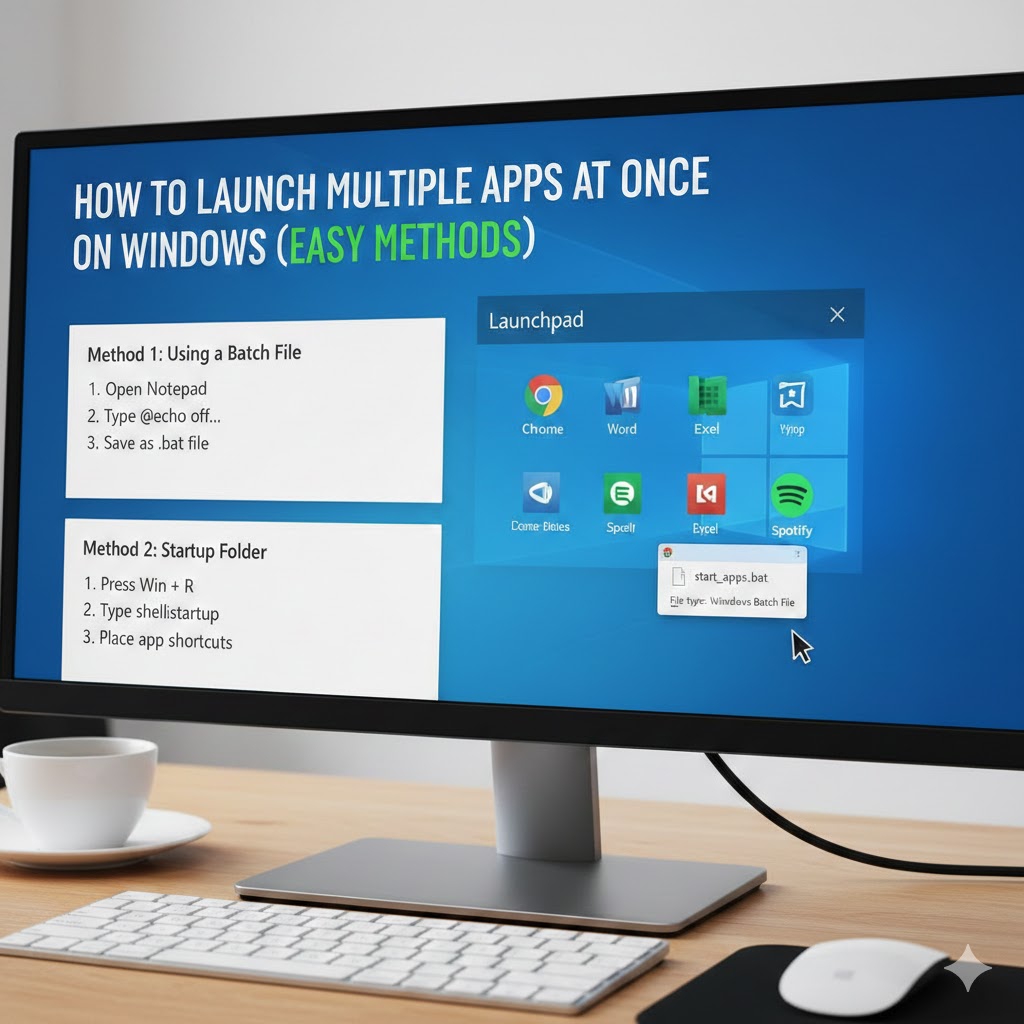
The good news is that Windows allows you to launch multiple apps at once using built-in tools and simple tricks—no advanced technical knowledge required. In this guide, you’ll learn all the best methods to open multiple programs simultaneously on Windows 10 and Windows 11, step by step.
Why Launch Multiple Apps at Once on Windows?
Most of the people are in corporate and many of the freelancers must use this method to get the work done on time and work with multitasking Before jumping into methods, let’s understand why this feature is useful:
- Saves time during system startup
- Improves daily workflow efficiency
- Ideal for work, study, and content creation
- Reduces repetitive tasks
- Perfect for remote work and multitasking
If you open apps like Chrome, Excel, VS Code, Spotify, or Zoom every day, automation is the smart solution.
Read more : Google Begins Gradual Rollout of Long-Awaited Feature to Change Your @gmail.com Address
Method 1: Use the Windows Startup Folder (Best for Beginners)
Well guys now we are going to discuss one of the best method use the windows startup folder Windows has a built-in Startup folder that automatically launches apps when your PC boots read step by step to do this method without making any mistake.
Steps to Add Apps to Startup Folder
- First of all you need to Press Windows + R
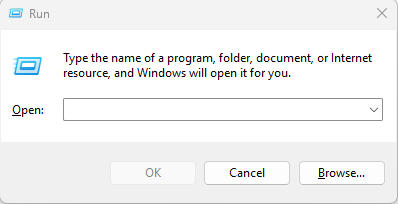
- After that you have to Type
shell:startupand press Enter - Now The Startup folder will open
- Apart that you have to Create shortcuts of apps you want to launch
- All you are done now Paste those shortcuts into this folder
Pros
- Simple and fast
- No extra software required
- Works on Windows 10 & 11
Cons
- Apps open only during system startup
- No control over launch order or delay
Read more : The 5 Best Apple Products of 2025 – Top Picks You Shouldn’t Miss
Method 2: Create a Batch File (Advanced & Powerful)
On the other hand guys we are going to tell you A batch file (.bat) lets you open multiple apps with a single double-click.
Step by Step Guide to How to Create a Batch File
- First you have to Open Notepad
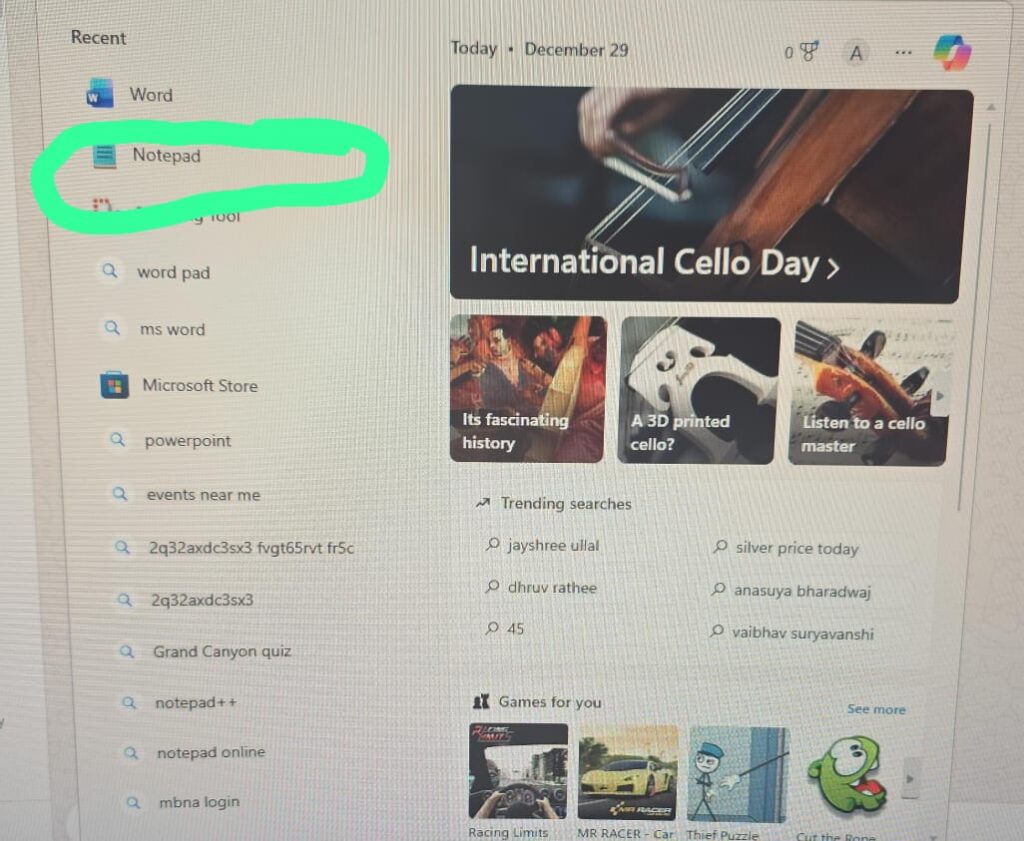
- Now you have to Add paths of apps like this:
- After that you have to Click File > Save As
- Now you have to Name it
launch-apps.bat - At the end you have to Set file type to All Files
- After that you have to Double-click the file to launch all apps instantly
Pros
- Launch apps anytime
- Fully customizable
- Lightweight & fast
Cons
- Requires correct file paths
- Slightly technical for beginners
Read more : Google AI Mode in Search: How Artificial Intelligence Is Changing Google Forever
Method 3: Use Task Scheduler (Automation Lovers)
Finally guys the last one method is Task Scheduler allows you to open multiple apps at specific times or events.
Steps by step guid to Use Task Scheduler
- First of all you need to Press Windows + S
- After that you have to Search for Task Scheduler
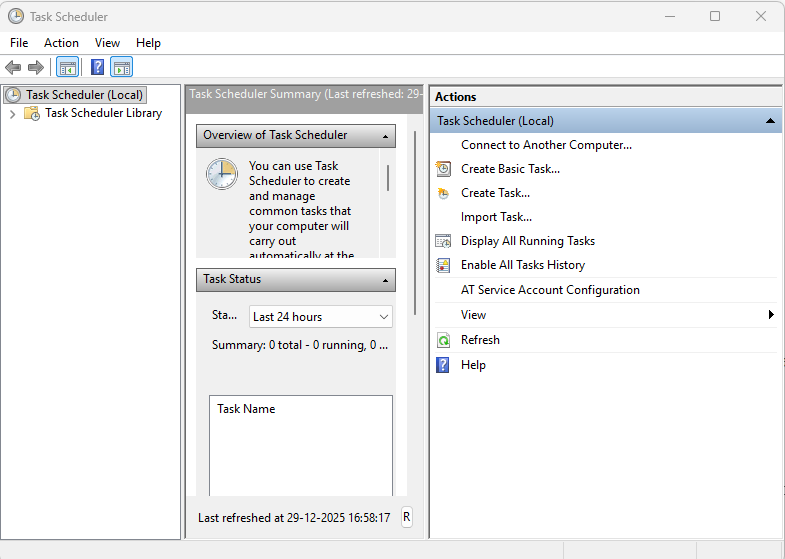
- Now you have to Click Create Basic Task
- After that you have to Choose trigger (Startup / Login / Time)
- At the end you have to Add multiple programs using “Start a Program”
- Apart from this you have to Save the task
Best Use Case
- Auto-launch apps during work hours
- Scheduled workflows
How to Launch Multiple Apps at Once on Windows – FAQs
What does launching multiple apps at once on Windows mean?
Launching multiple apps at once means opening several programs simultaneously instead of starting them one by one. This can be done automatically at startup or manually using scripts, folders, or tools.
Can I launch multiple apps at once on Windows 11?
Yes, Windows 11 fully supports launching multiple apps at once using startup folders, batch files, Task Scheduler, PowerShell scripts, and third-party app launchers.
What is the easiest way to open multiple apps together on Windows?
The easiest method is using the Startup folder. By adding app shortcuts to the startup folder, Windows automatically launches them when you log in.
Can I open multiple apps with one click?
Yes. You can create a batch file (.bat) that opens multiple apps with a single double-click. This is one of the most popular and flexible methods.
Read more : Top 10 Best Budget Smartphones Under $300 in 2025 – Performance Meets Affordability
Conclusion :
In this article, we have shared complete information with you related to [How to Launch Multiple Apps at Once on Windows (Easy Methods)].The purpose of this website run by the Enterprises is not only to provide benefits but also to improve the standard of living of the Peoples.
At TechVirus, we aim to bring you the latest and most reliable updates from the world of technology. Stay connected with TechVirus for daily tech news, unbiased reviews, and real-world insights that matter.
Visit regularly to get the latest updates, eligibility criteria, application process, and accurate information about other government schemes – Techvirus.net