Hello Dear readers welcome to Techvirus today we are going to discuss about How to Update Apps on iPhone: Step-by-Step Guide for Automatic & Manual Updates. Well guys today were here for discuss the update apps on iphone and this post is more beneficial for you we are going for a specific guide for automatic and manual updates.
Friends Updated apps appear under Updated Recently. If updates don’t show, pull down to refresh or check your internet connection. Manual updates may prompt for your Apple ID password. In this group of context we are going to suggest you one of the best two methods so what are you waiting for just be with us till the end of the article.
How to Update Apps on iPhone: Step-by-Step Guide for Automatic & Manual Updates
Keeping your apps updated on an iPhone is essential for better performance, new features, security fixes, and bug improvements. Apple regularly pushes updates through the App Store to ensure apps run smoothly with the latest iOS versions.
Updating apps on iPhone is a simple but crucial task that keeps your device secure, fast, and compatible with the latest iOS features. Whether you prefer manual control or automatic updates, Apple provides flexible options to suit every user.
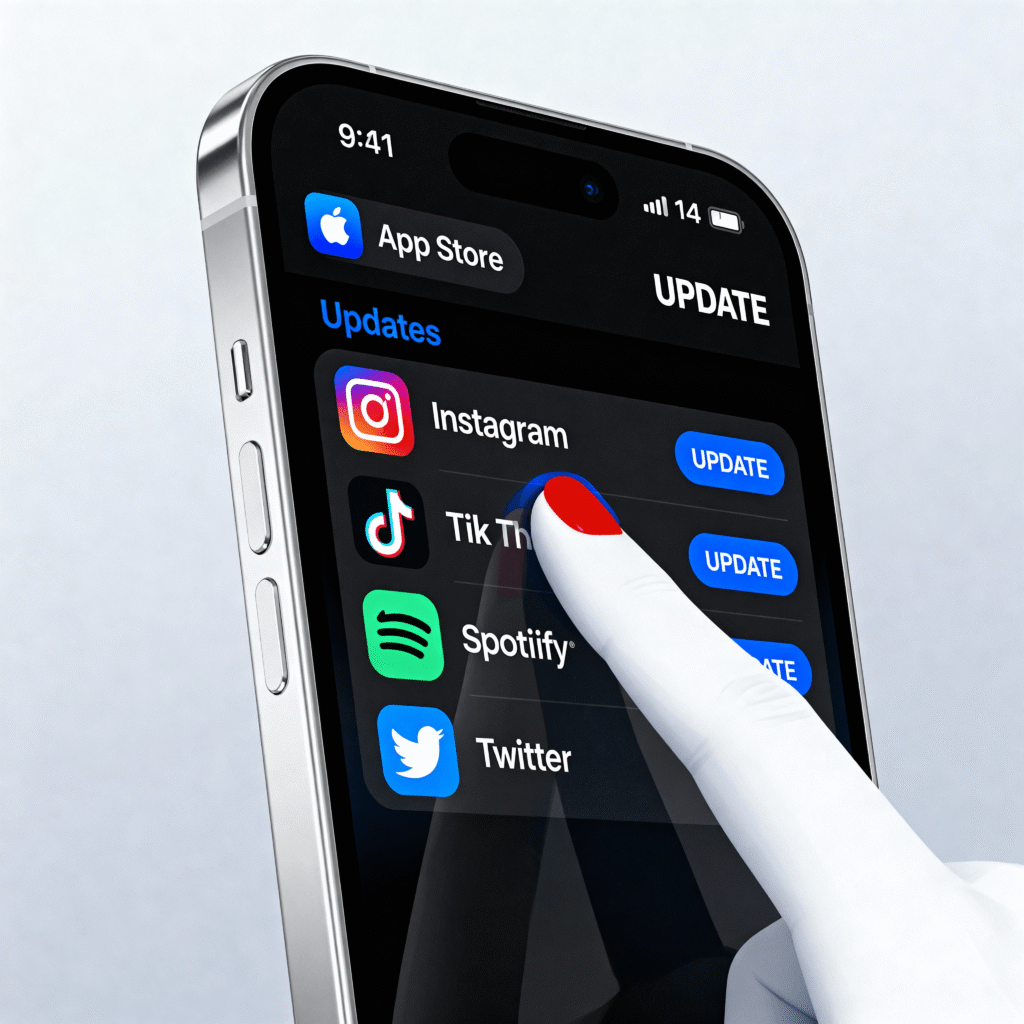
Whether you’re a beginner or an experienced iPhone user, this guide will explain how to update apps on iPhone manually and automatically, troubleshoot common issues, and answer frequently asked questions.
Why Updating Apps on iPhone Is Important
Fortunately guys after purchasing the iphone there is most important thing that is Updating apps isn’t just about getting new features. App updates also provide you the best user friendly features and give you best
- Fix security vulnerabilities
- Improve app speed and stability
- Resolve crashes and bugs
- Ensure compatibility with the latest iOS version
- Add performance and UI improvements
Ignoring updates may cause apps to malfunction or stop working properly.
Read more : How to Combine Multiple Images into One PDF (Easy & Step-by-Step Guide)
Method 1: How to Update Apps on iPhone Manually
So guys we are going to tell you one of the best method This is the most common and controlled way to update apps.
- Firstly you have to Open the App Store on your iPhone
- After that you have to Tap your profile picture in the top-right corner
- Now you have to Scroll down to see Available Updates
- Now guys you have to Tap Update next to a specific app OR Tap Update All to update all apps at once
Your apps will start downloading and updating automatically.
Method 2: How to Enable Automatic App Updates on iPhone
Now on the other hand you have If you don’t want to update apps manually, you can enable automatic updates.
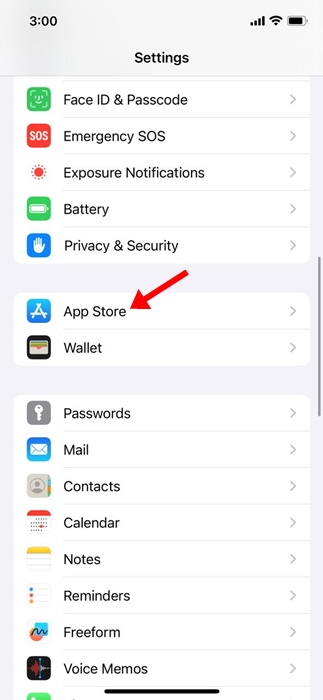
- First thing you have to Open Settings
- After that you have to Tap App Store
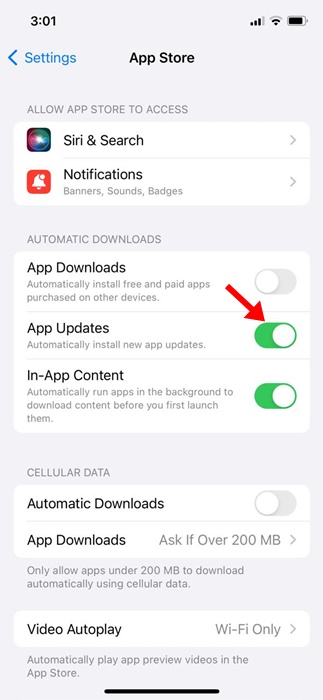
- Now you have to Under Automatic Downloads, turn on App Updates
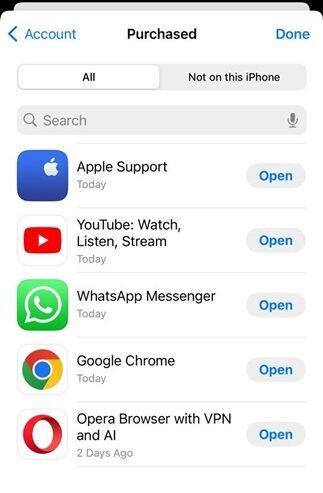
- At the end (Optional) Enable Cellular Data if you want updates over mobile data
Once enabled, your iPhone will automatically update apps in the background.
Read more : Google Gemini Integrates Personal Data for Enhanced AI Responses with Personal Intelligence
How to Update Apps Using Cellular Data
There is most important thing you have to do updates apps using cellular data so you have to read all the points very carefully. Large updates may consume significant mobile data.
- First thing you have to Go to Settings → App Store
- After that you have to Turn on Automatic Downloads
- Now you have to Enable Cellular Data
What to Do If iPhone Apps Are Not Updating
There are most of things were happened occur at your phone while your iphones apps are not updating there is a troubleshooting so read all the errors read below.
Quick Troubleshooting Steps
- Check your internet connection
- Restart your iPhone
- Ensure enough storage is available
- Sign out and sign back into your Apple ID
- Update iOS to the latest version
- Pause and resume the app download
If the issue persists, resetting network settings may help.
How to Update All Apps After a New iOS Update
After installing a new iOS version, many apps release compatibility updates.
- First of all you need to Open the App Store
- After that you have to go to Profile
- Now you have to Tap Update All to avoid crashes or glitches.
Read more : Apple Creator Studio Launched: New All-in-One Subscription for Creators on iPhone, iPad & Mac
How to Update Apps on iPhone – FAQs
How often should I update apps on iPhone?
You should update apps regularly or enable automatic updates to stay secure and bug-free.
Why are my iPhone apps not updating automatically?
Automatic updates may be disabled, low battery mode might be active, or your iPhone may lack storage or internet access.
Can I update apps without Wi-Fi?
Yes, you can update apps using cellular data by enabling it in App Store settings.
Do app updates consume battery?
Yes, but the impact is minimal. It’s best to update apps while charging or on Wi-Fi.
Will updating apps delete my data?
No, app updates do not remove personal data unless explicitly stated by the app.
How can I update a single app only?
Go to the App Store → Profile → Tap Update next to the specific app.
Read more : How To Find the Fastest DNS Server for Your Android Phone (2025 Guide)
Conclusion :
In this article, we have shared complete information with you related to [How to Update Apps on iPhone: Step-by-Step Guide for Automatic & Manual Updates]. The purpose of this website run by the Enterprises is not only to provide benefits but also to improve the standard of living of the Peoples.
At TechVirus, we aim to bring you the latest and most reliable updates from the world of technology. Stay connected with TechVirus for daily tech news, unbiased reviews, and real-world insights that matter.
Visit regularly to get the latest updates, eligibility criteria, applying to method , and accurate information about other technology schemes – Techvirus.net