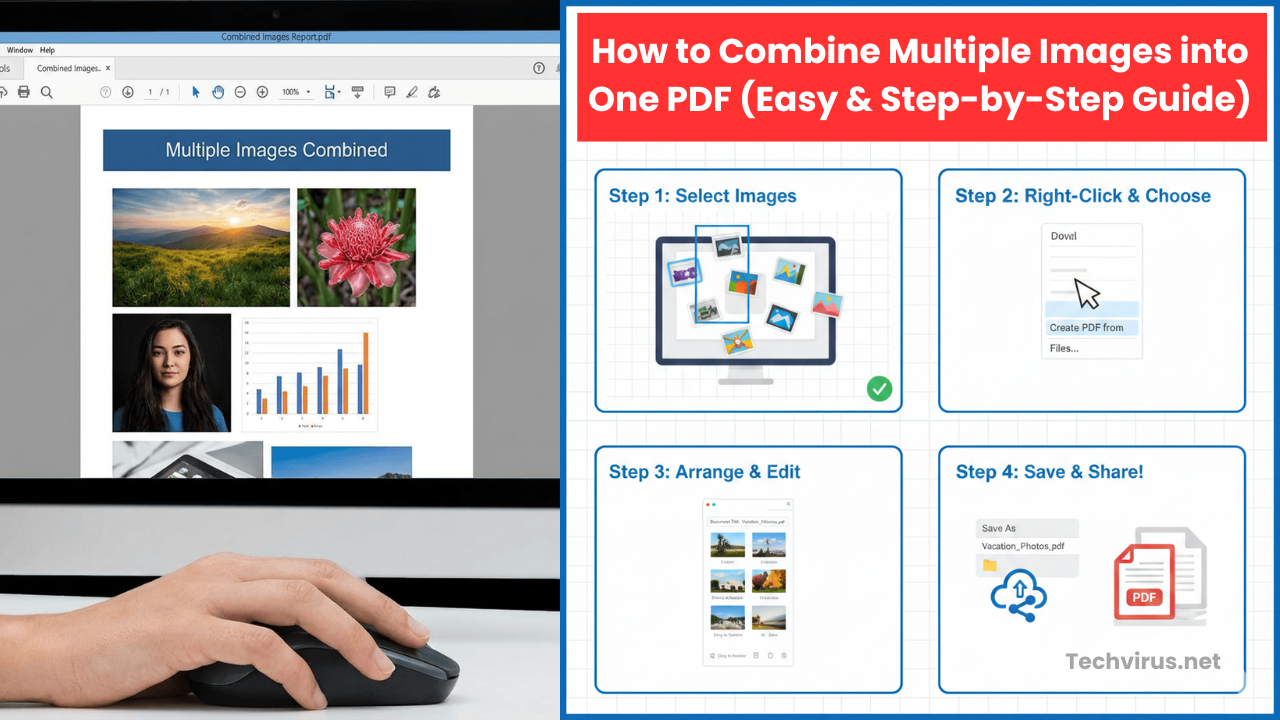
Hello Dear readers welcome to Techvirus today we are going to discuss about How to Combine Multiple Images into One PDF (Easy & Step-by-Step Guide). There is a un-necessary problem where every user has faced this time that is combined multiple images into one pdf don’t worry guys techvirus is here for all your problem in one solution.
Fortunately as we seen that combine multiple images into one pdf doing is not a big problem but may of the people are facing issue while they were applying onto it so be with us till the end of the article we are going to suggest you best two method to applying on it.
Read more : Google Gemini Integrates Personal Data for Enhanced AI Responses with Personal Intelligence
How to Combine Multiple Images into One PDF (Easy & Step-by-Step Guide)
Now Friends we are here for discussing the best two methods to combine multiple images into one PDF. Gradually we have seen that so many problems users were face while doing this process while PDF stands for ( Portable Document File ) read all the methods very carefully applying it.
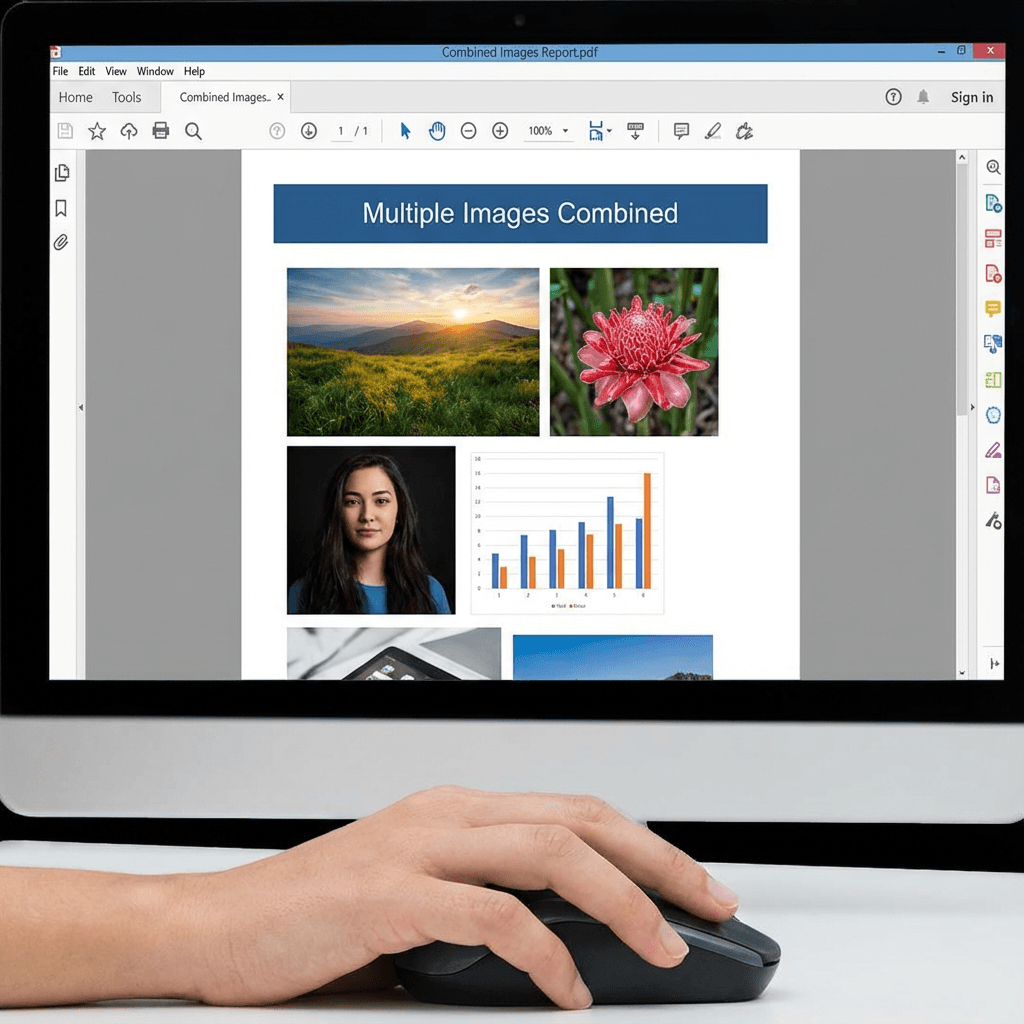
Combining multiple images into one PDF is a common requirement for students, professionals, and businesses. Whether you want to submit documents, create reports, or store images neatly, a single PDF file is more convenient and professional than multiple image files.
Benefits and Features
Friends we are going to elaborate the list of things Here are some key benefits:
- Easy to share and upload
- Maintains image quality
- Professional document format
- Accepted by most platforms
- Reduces file clutter
Read more : Apple Creator Studio Launched: New All-in-One Subscription for Creators on iPhone, iPad & Mac
Method 1: Combine Images into PDF on Windows
First thing we are going to discuss you one the best method to combine images into PDF on windows so read all the below points carefully.
- First of all you need to Select all images you want to combine
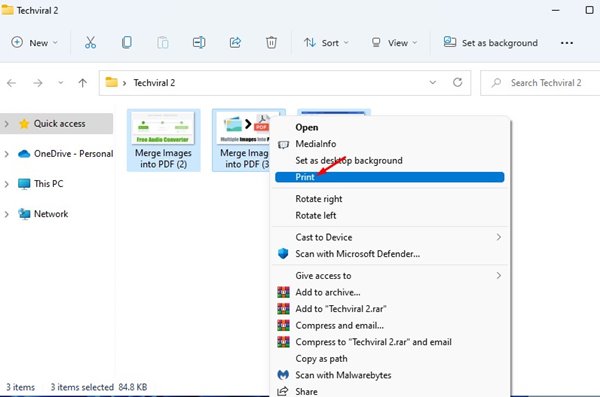
- After that you have to Right-click and choose Print
- After that you have to Select Microsoft Print to PDF
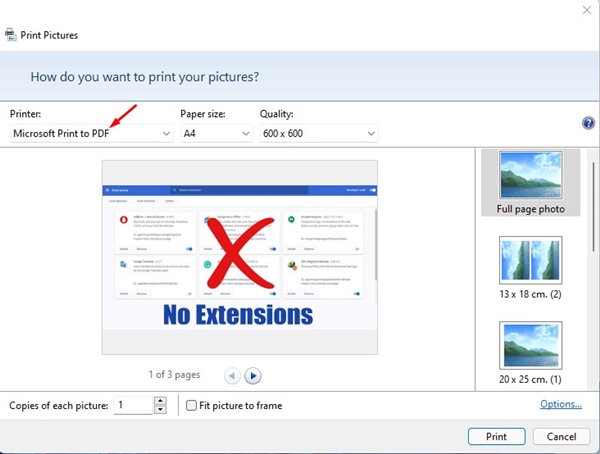
- Now just click on Arrange images and click Print
- After that you have to Save your PDF file
Read more : How to Enable Wi-Fi Calling on iPhone – Complete Step-by-Step Guide
Method 2: Combine Images into PDF on Mac
On the other hand if you want to combine images into pdf on Mac so read all the points carefully.
- First of all Select images → Right-click → Open With Preview
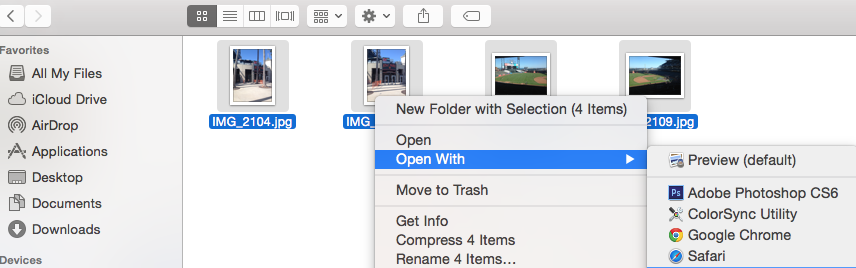
- After that you have to Arrange images in Preview
- Now you have to Click File → Export as PDF
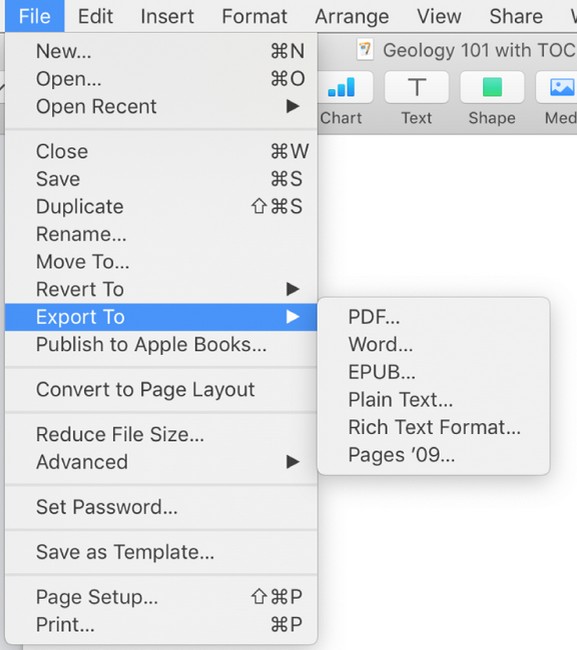
- After that you have to Save the PDF
Read more : How to Adjust Left and Right Audio Balance in Windows 11 (Step-by-Step Guide)
Method 3: Combine Images into PDF on Android
Thirdly there is a another method combine images into PDF on Android so read all the points carefully.
- First of all you need to Open Google Photos or Files app
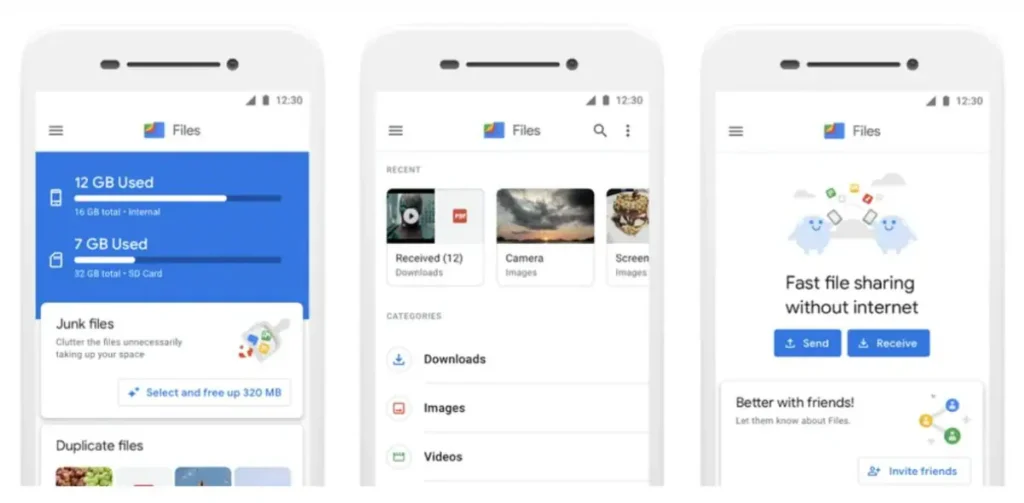
- After that you have to Select multiple images
- Now you have to Tap Share → Print
- After that you have to Choose Save as PDF
Method 5: Combine Images into PDF Online (Best for Everyone)
Online tools are the easiest option when you want quick results.
- After that you have to Open a free image-to-PDF tool
- On the other hand you have to Upload multiple images
- After that you have to Arrange order
- Now you have to Click Convert to PDF
- After that you have to Download the file
Important Updates
- Use high-quality images
- Arrange images in correct order
- Compress images if PDF is too large
- Use trusted tools to protect privacy
Read more : AI Search vs Google Search in 2026: Is SEO Really Dead or Evolving?
How to Combine Multiple Images into One PDF – FAQs
Can I combine images into PDF for free?
Yes, many devices and online tools allow free image-to-PDF conversion.
Will image quality reduce after converting to PDF?
No, if you use a good tool, image quality remains intact.
Is it safe to use online image-to-PDF tools?
Yes, as long as you use trusted platforms that auto-delete files.
Can I rearrange images before converting to PDF?
Yes, most tools allow drag-and-drop ordering.
Can I convert images to PDF on mobile?
Absolutely. Android and iPhone both support image-to-PDF conversion.
Read more : Top 10 Best Budget Smartphones Under $300 in 2025 – Performance Meets Affordability
Conclusion :
In this article, we have shared complete information with you related to [How to Combine Multiple Images into One PDF (Easy & Step-by-Step Guide)].The purpose of this website run by the Enterprises is not only to provide benefits but also to improve the standard of living of the Peoples.
At TechVirus, we aim to bring you the latest and most reliable updates from the world of technology. Stay connected with TechVirus for daily tech news, unbiased reviews, and real-world insights that matter.
Visit regularly to get the latest updates, eligibility criteria, applying to method , and accurate information about other technology schemes – Techvirus.net