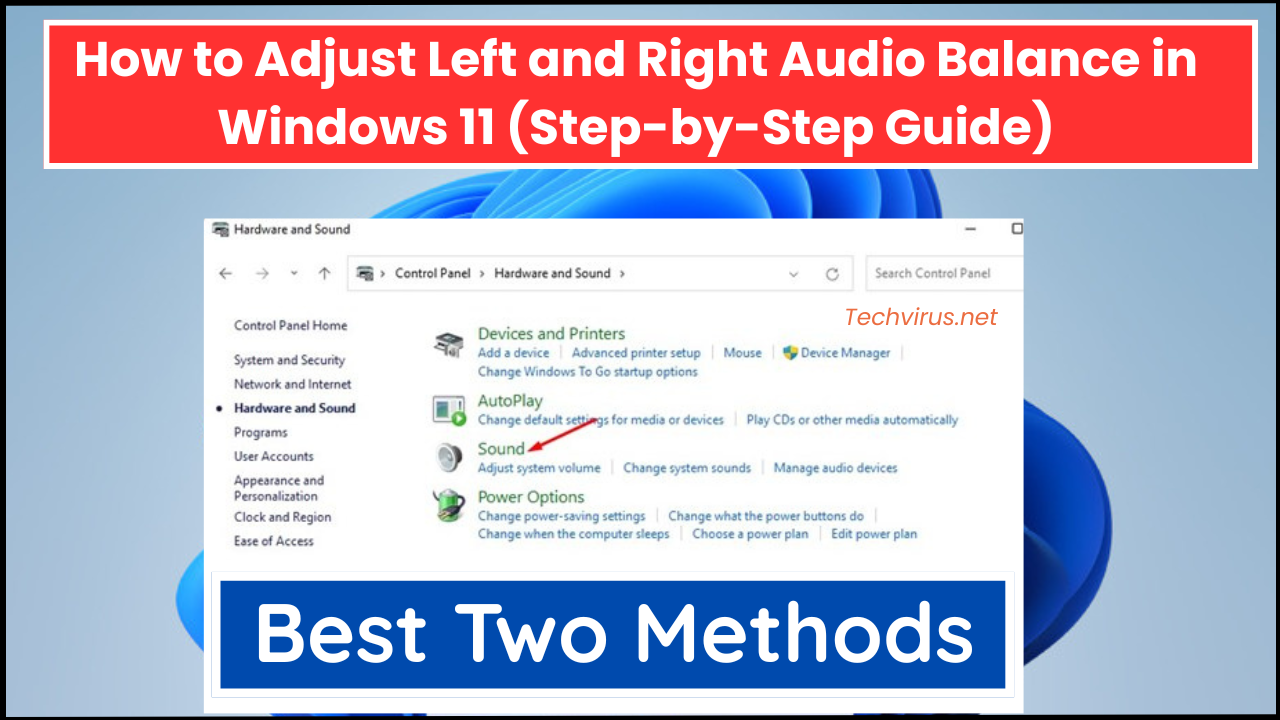
Hello Dear readers welcome to Techvirus today we are going to discuss about How to Adjust Left and Right Audio Balance in Windows 11 (Step-by-Step Guide). Fortunately guys there was a major issues have been persist in adjust left and right audio balance in windows 11 so we are going to guide you step by step so be with us till the end of the article.
We’ll include multiple methods (built-in Settings, Control Panel, per-app options, and using third-party tools) so you can pick what works best for you. I’ll assume you want to adjust system-wide output balance for headphones or speakers.
Read more : AI Search vs Google Search in 2026: Is SEO Really Dead or Evolving?
How to Adjust Left and Right Audio Balance in Windows 11 (Step-by-Step Guide)
Uneven audio can be frustrating, especially when using headphones or external speakers. Sometimes sound plays louder in one ear than the other, making music, videos, or gaming uncomfortable. Fortunately, Windows 11 provides built-in options to adjust left and right audio balance easily without installing any third-party software.
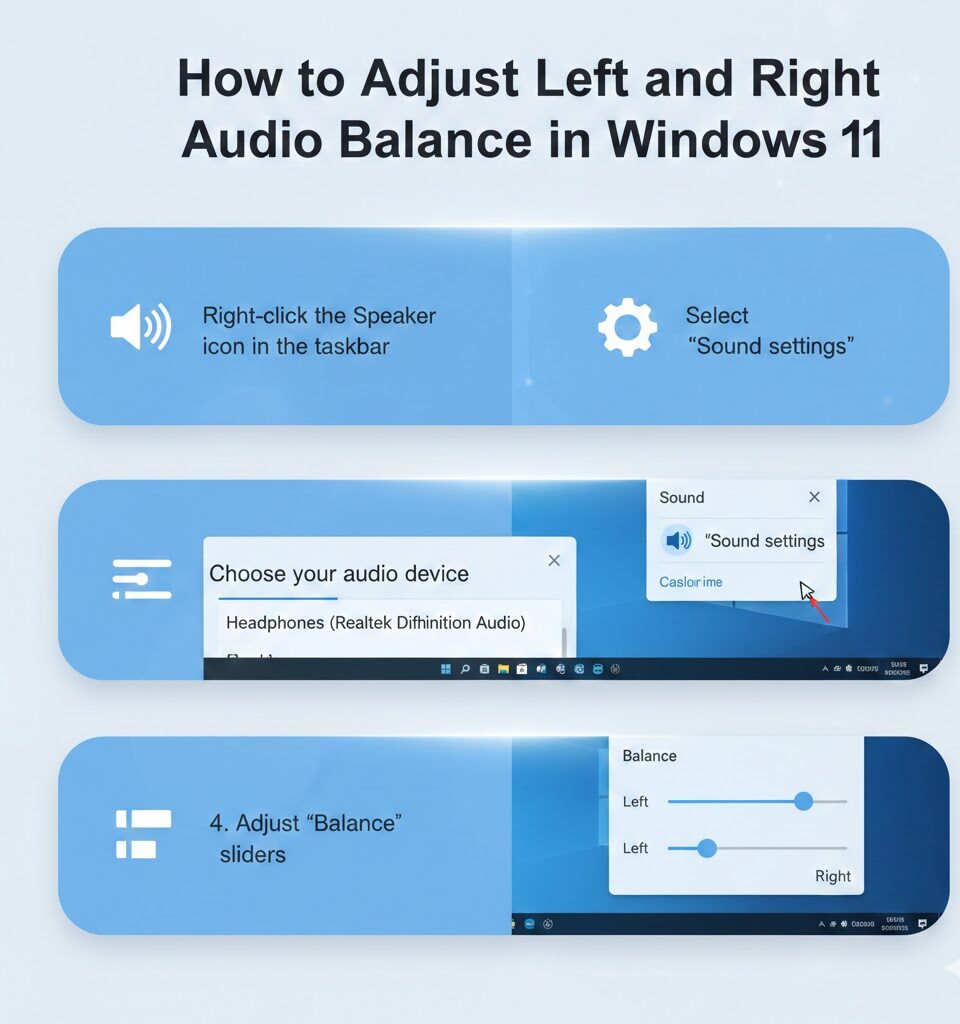
Adjusting left and right audio balance in Windows 11 is quick, simple, and highly effective for improving your listening experience. Whether you use system settings, Control Panel, or accessibility options, Windows 11 gives you enough control to fix uneven sound without hassle.
Why Audio Balance Matters in Windows 11
We know guys all of you are thinking that why audio balance matters so we wanna tell you that Audio balance controls how much sound comes from the left and right channels of your speakers or headphones. If the balance is off, you may experience:
- Sound louder in one ear
- Missing background music in videos
- Poor gaming or movie experience
- Listening fatigue or discomfort
This problem can occur due to:
- Accidental setting changes
- Faulty drivers
- Software bugs
- Hearing differences between ears
- Improper headphone configuration
Read more : AI Agents Are Replacing Mobile Apps: Here’s How Smartphones Will Work in 2026
Method 1: Adjust Left and Right Audio Balance Using Windows 11 Settings
Guys first we gonna tell you that This is the easiest and recommended method. If you also want to apply this one method so read the step by step instructions.
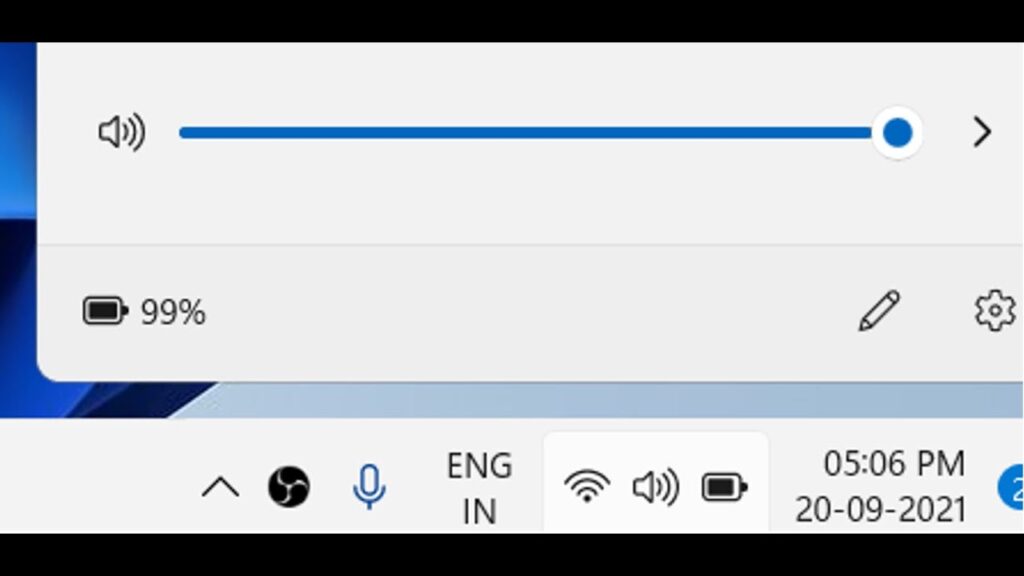
- First of all you need to Open Right-click the Speaker icon on the taskbar
- After that you have to Select Sound settings
- Now you have to Scroll down to the Output section
- Apart from that just Click on your active device (Speakers or Headphones)
- Now you have to Scroll to Output settings
- Now just Look for the Balance option
- After that You will see two sliders L (Left) and R (Right) sections.
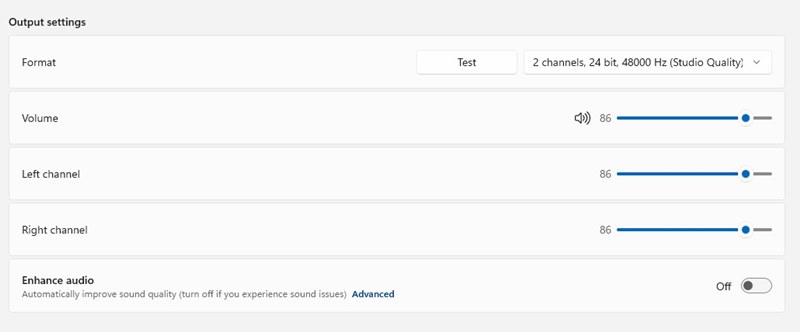
- At the end you have to Adjust the sliders until the sound feels balanced and Changes apply instantly, so you can test while adjusting.
Read more : Galaxy S26’s New Privacy Feature Leaves the iPhone 17 in the Dust — Here’s What It Means
Method 2: Adjust Audio Balance via Control Panel (Classic Method)
On the other hand there is a second method that Some users prefer the traditional Control Panel method, which is still available in Windows 11.
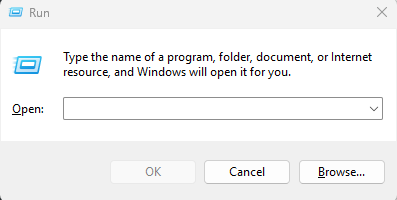
- Firstly you have to Press Windows + R
- After that you have to Type
controland press Enter
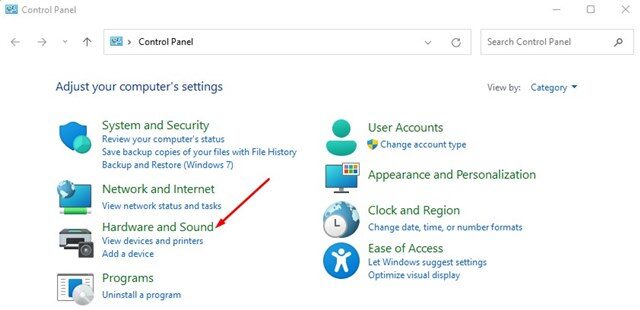
- Now you have to Go to Hardware and Sound
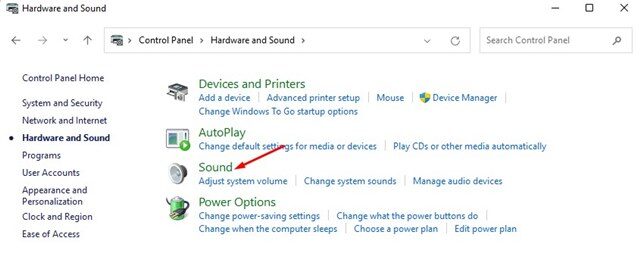
- After that you have to Click Sound
- Now you have to Select your playback device
- After that you have to Click Properties
- Now you have to Open the Levels tab
- After that you have to Click Balance
- Now you have to Adjust Left and Right audio levels
- At the end you have to Click OK
This method offers precise control, especially useful for older sound drivers.
Important Updates
- Use high-quality headphones
- Keep audio drivers updated
- Avoid using multiple sound-enhancing apps together
- Test balance after major Windows updates
- Save custom audio profiles if supported
Read more : Google Maps vs Apple Maps: Which Navigation App Should You Use in 2026?
How to Adjust Left and Right Audio Balance in Windows 11 – FAQs
Can I set different balance levels for different apps?
No, Windows 11 does not currently support per-app audio balance control.
Why does my audio balance keep changing?
This may be caused by:
- Driver conflicts
- Third-party audio apps
- Bluetooth instability
Is mono audio better than balance adjustment?
Mono audio is helpful for accessibility but not ideal for music or gaming.
Does Windows 11 Save Audio Balance Settings?
Yes. Windows 11 automatically saves audio balance settings per device. However, switching headphones or speakers may require re-adjustment.
Read more : Top 10 Best Budget Smartphones Under $300 in 2025 – Performance Meets Affordability
Conclusion :
In this article, we have shared complete information with you related to [How to Adjust Left and Right Audio Balance in Windows 11 (Step-by-Step Guide)].The purpose of this website run by the Enterprises is not only to provide benefits but also to improve the standard of living of the Peoples.
At TechVirus, we aim to bring you the latest and most reliable updates from the world of technology. Stay connected with TechVirus for daily tech news, unbiased reviews, and real-world insights that matter.
Visit regularly to get the latest updates, eligibility criteria, applying to method , and accurate information about other technology schemes – Techvirus.net